
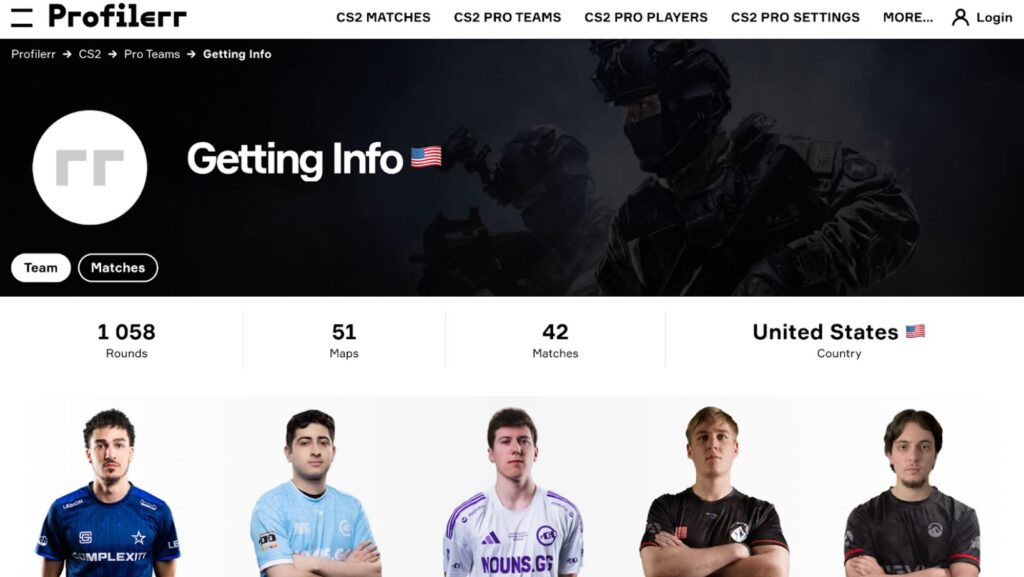
Counter-Strike 2 is a long-awaited sequel to the cult series that has attracted millions of players worldwide. The monthly number of players worldwide is about 1,033,600. However, along with new visual effects, reworked physics, and improved gameplay, there are also performance issues that interfere with smooth play and achieving results. In this article by Volodymyr Huda, we will look at the main causes of crashes and advice on how to get rid of them. After all, if you want to achieve the same great results as the players of FaZe Clan, Astralis, and Getting Info CS2 teams, smoothness in the game is simply necessary.
What Сan Players Do if They Have Problems with the Game?
There can be many reasons why a game may not allow a player to demonstrate all of its capabilities. These are problems with the network, equipment, settings.
Checking System Requirements
Pro players closely monitor the performance of their equipment, and if you want to achieve the same results as CS2 players Getting Info, Astralis or North, it is important to know about the features of the equipment and network that can interfere with the game.
Before you move on to checking the settings for lags, it is important to make sure that your computer meets the CS2 system requirements. Even with the best optimizations, the game can slow down if the hardware cannot cope.
With each update, Source 2 begins to require more resources, especially for RAM and a video card. If you are playing on a laptop or an old PC, you may want to consider lowering the settings or upgrading.
Recommended:
- OS: Windows 10 64-bit;
- Processor: 4+ cores, not lower than i5 8th generation;
- RAM: 16 GB;
- Video card: GTX 1060 / RX 580 and higher;
- Storage: SSD.
Network Lags
CS2 is a network game, and connection quality plays a huge role. Even with excellent graphics and a powerful video card, high ping or packet loss can completely ruin the gameplay.
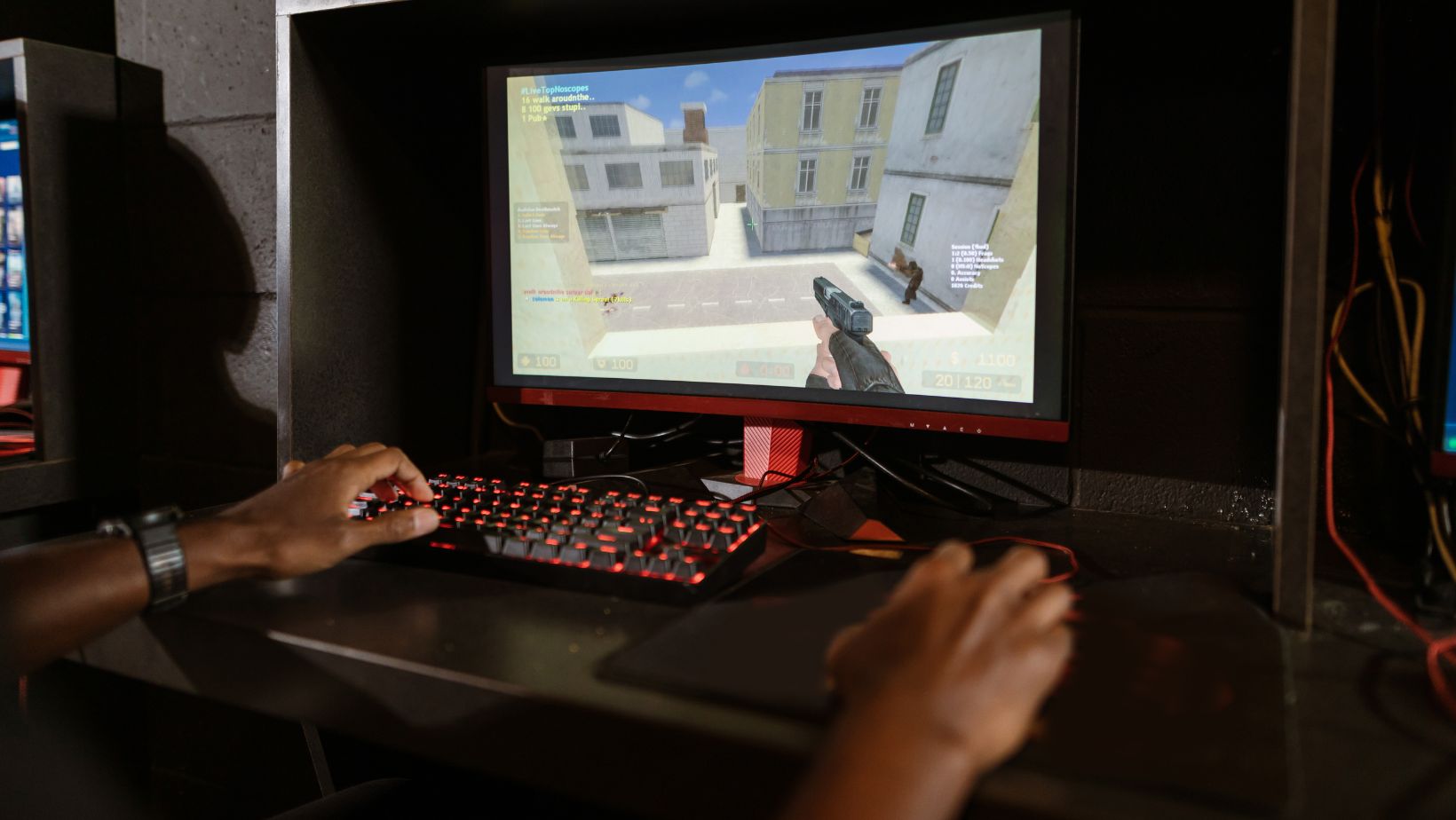
If you notice teleports of players or delays in shots, the problem is most likely in the connection. Below are the basic steps to stabilize the network:
- Connect the PC directly via an Ethernet cable;
- Disable background activity: browsers, Discord, torrents;
- In the matchmaking settings, select the nearest server region;
- Clear the DNS cache: ipconfig /flushdns;
- Restart the router or replace it with a more modern one.
- If the problem persists, contact your provider and ask them to check the route trace.
Graphics Optimization
Source 2 is a powerful engine, but it requires more powerful hardware. Even on new PCs, there may be freezes and FPS jumps, especially during smoke or mass battles.
To achieve stable performance reduce the screen resolution:
- Go to the CS2 settings;
- Open the “Image” tab – “Graphics”;
- Select a more optimal resolution from the list (if necessary, change the screen format from 16:9 to 4:3).
Reducing the screen resolution in CS2 reduces the number of pixels the graphics card has to process, which directly increases the frame rate and makes the game run smoother. Although this reduces image clarity, stable FPS and fast reactions are more important in competitive matches.
Updating Drivers and the system
Many players forget about drivers and libraries, although this is the key to stable operation of CS2. Outdated drivers = freezes and crashes.
What you must update:
- NVIDIA/AMD drivers;
- DirectX and Visual C++ Redistributable;
- .NET Framework;
- Update Windows to the latest version.
- Download only from official sources, otherwise you can harm the system.
Monitor the Temperature of Components
Overheating can suddenly ruin the game. The processor or video card drops frequencies to avoid overheating — hence the FPS drops.
Recommended programs:
- HWMonitor, HWiNFO64, MSI Afterburner;
- Maintain CPU up to 85°C;
- GPU — up to 75-80°C.
If the temperature is above normal:
- Clean out the dust;
- Check the fans;
- Replace the thermal paste (if it hasn’t been changed in a while).
Enable Windows Performance Mode
Windows can save resources at the expense of games. This is especially true for laptops and builds with automatic settings.
How to enable maximum:
- Control Panel – Power – Maximum performance;
- Disable sleep mode and automatic screen shutdown;
- If you have a laptop, you need to enable “turbo mode” through proprietary utilities.
Enabling maximum performance mode in Windows allows the system to use all available resources without restrictions, which is especially important for games like CS2, where stability and high frame rates are important. By default, Windows can limit performance for the sake of energy saving, especially on laptops.
Network console commands in CS2
For a more stable network game, CS2 provides flexible settings through the console. These commands adjust the client speed and response:
- cl_interp_ratio 1;
- cl_cmdrate 128;
- cl_updaterate 128;
- rate 786432.
Why do you need this:
- Reducing latency and more accurate synchronization;
- Increasing the bandwidth;
- Stable response to actions in battle.
- If the Internet is unstable, set cl_interp_ratio 2 for greater stability, but with a slight delay.
Disable V-Sync
V-Sync in CS2 reduces FPS because it limits the frame rate to the monitor refresh rate and forces the video card to wait for each screen update to complete, which increases input lag and can dramatically reduce FPS during drops (for example, from 60 to 30). In competitive games, this leads to a decrease in control responsiveness, so it is better to disable V-Sync to get higher performance and minimal input lag.
Conclusion
If the game freezes, it is important to check not only the state of the hardware components, but also the game settings, software conflicts, and the stability of the Internet connection. In most cases, simple steps will help restore stability to the game. If the problem persists, you may need to consider an upgrade or contact support. Don’t forget about other parts of the game: settings, motivation and matches. On Profilerr, you can learn about the settings of players, including Vitality’s Mathieu “ZywOo” Herbaut or fnatic’s Benjamin “blameF” Bremer. In addition, on Profilerr you can use such useful services as Steam ID finder, crosshair generator, binding generator and also view the value of players’ inventory.